
You can set up server callbacks to receive advertising IDs, attribution details, app data, and more directly to your servers as raw data. This allows you to pass real-time event and attribution data from Adjust directly into your own systems for further processing, reporting, or integration with other platforms.
Support References:
Log in to Adjust
- Log in to your Adjust Suite at suite.adjust.com/apps.
Server Callback Setup
Adjust provides two navigation paths to access the Server Callbacks configuration for your app. Both paths lead to the same setup screen — use whichever is more convenient based on how you typically navigate the Adjust dashboard.
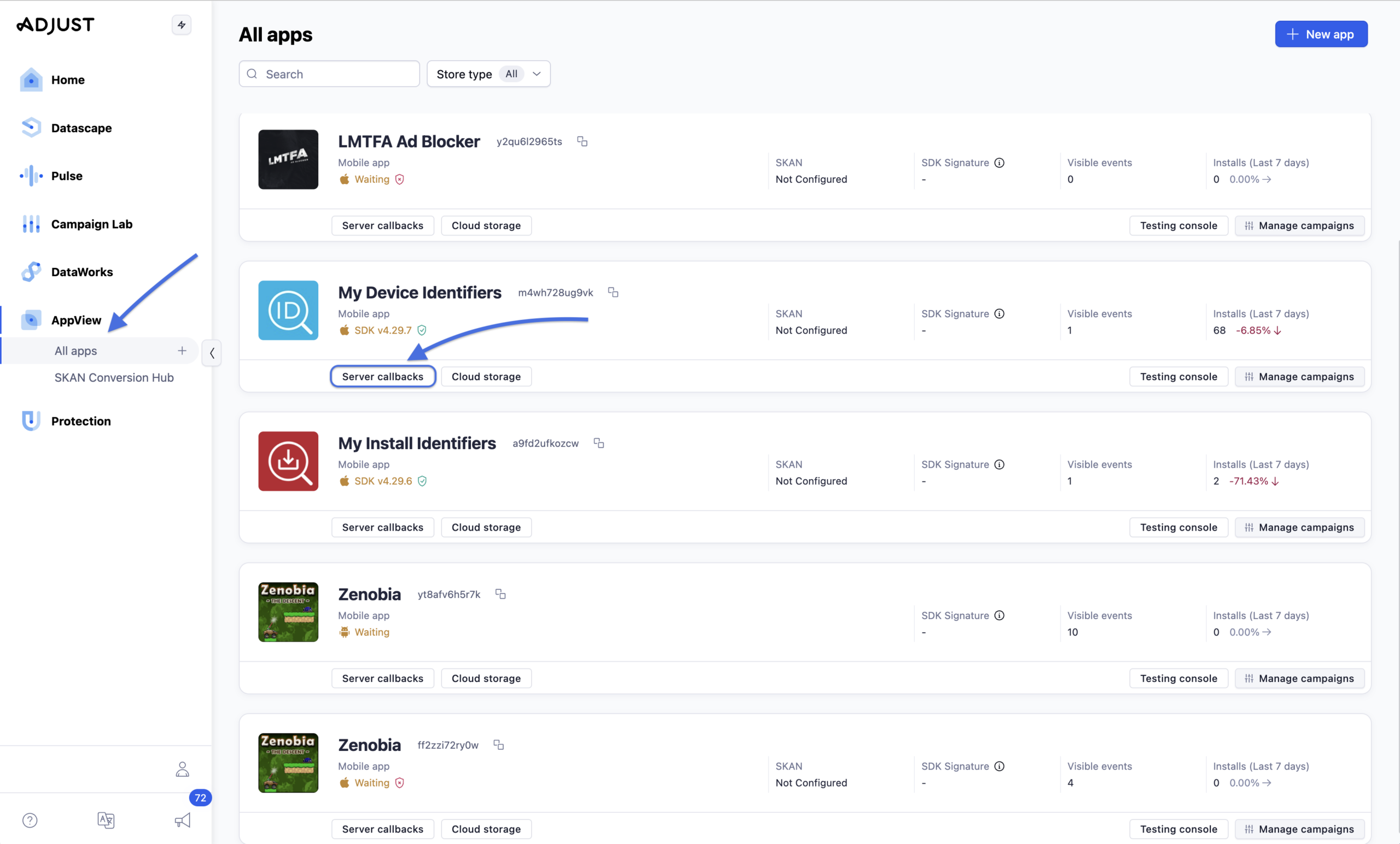
Option A: Server Callback via the App Card
- Navigate to AppView > All Apps.
- Locate your app.
- Select Server callbacks.
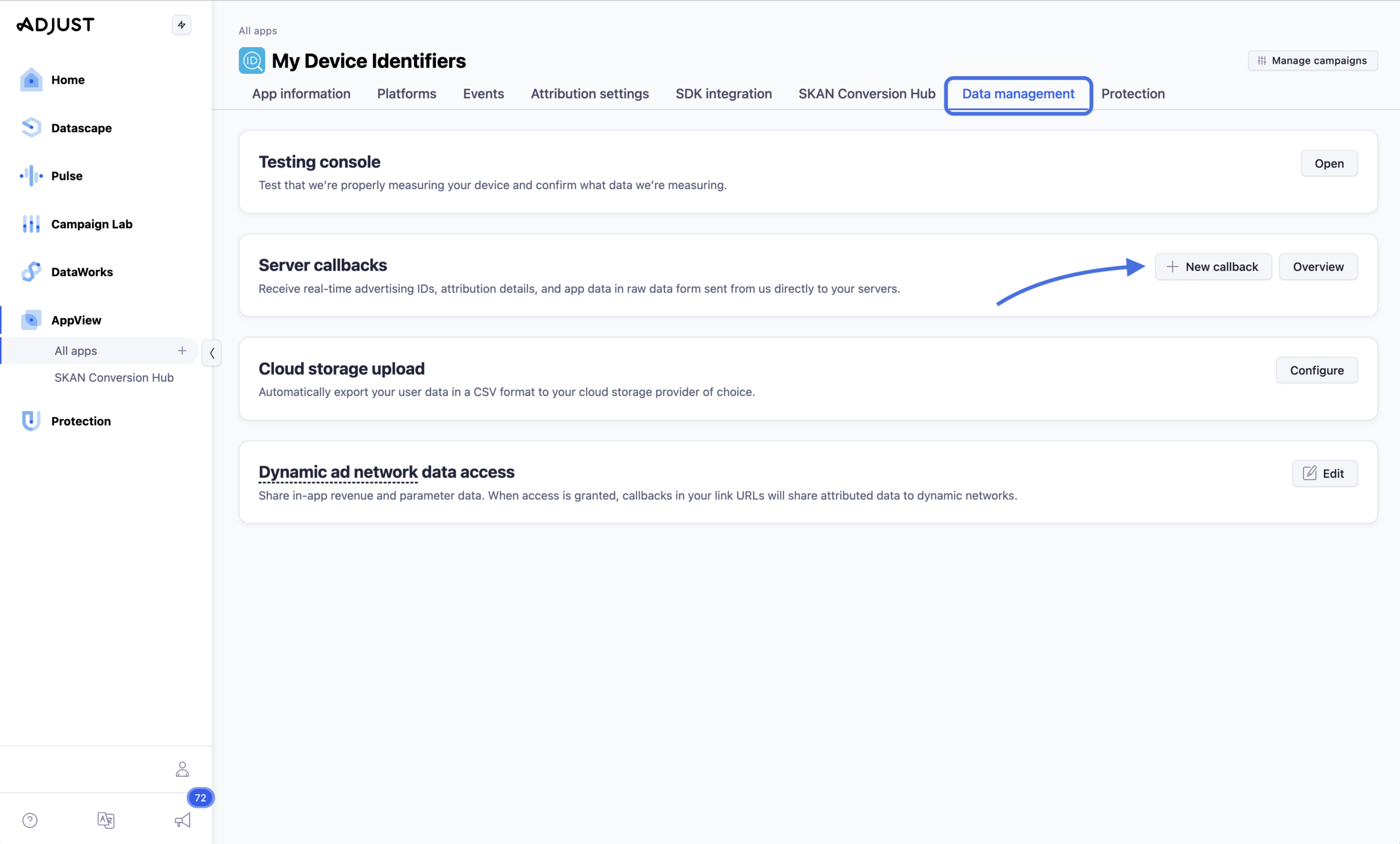
Option B: Server Callback via Data Management
- Navigate to AppView > All Apps.
- Locate and select your app.
- Select the Data management tab.
- Click + New callback.
Create Callback URLs
Before creating your server callback in Adjust, you’ll need to construct a callback URL for each event or activity you want to send. Each callback URL is built from a shared base URL, with your API key, product ID, and event name as static parameters, and IP address and user agent supplied dynamically via Adjust’s macro system.
Base URL:
https://adsmeasurement.com/v1/attribution?api_key={your_api_key}&product={your_product_id}&eventName={event_name}&ip={ip_address}&userAgent={user_agent}
- Your API key, product ID, and event names will all be static parameters.
- The remaining parameters (IP address and user agent) will use dynamic macros that Adjust automatically populates at send time.
Example URL with mapping and static parameter values populated for the first_open event:
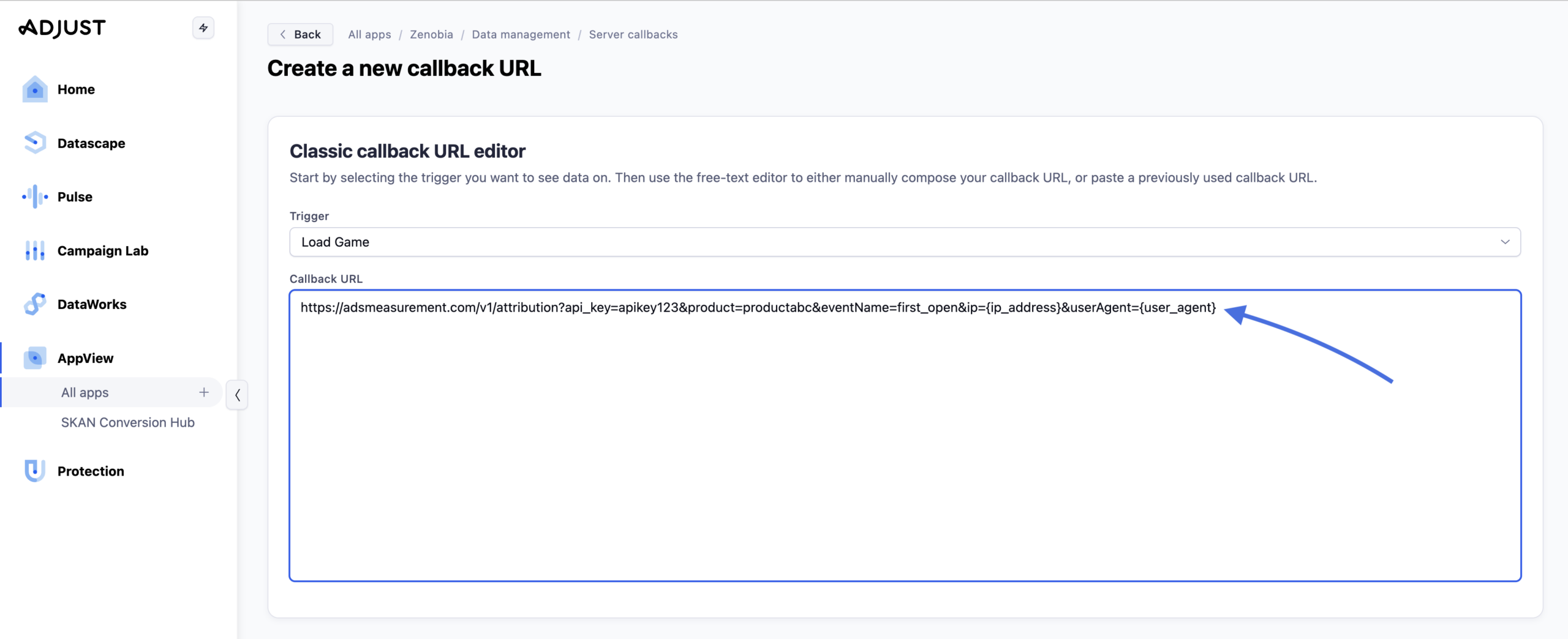
https://adsmeasurement.com/v1/attribution?api_key=apikey123&product=productabc&eventName=first_open&ip={ip_address}&userAgent={user_agent}
Create Server Callback
Once you have your callback URLs constructed, use the following steps to configure each server callback in Adjust:
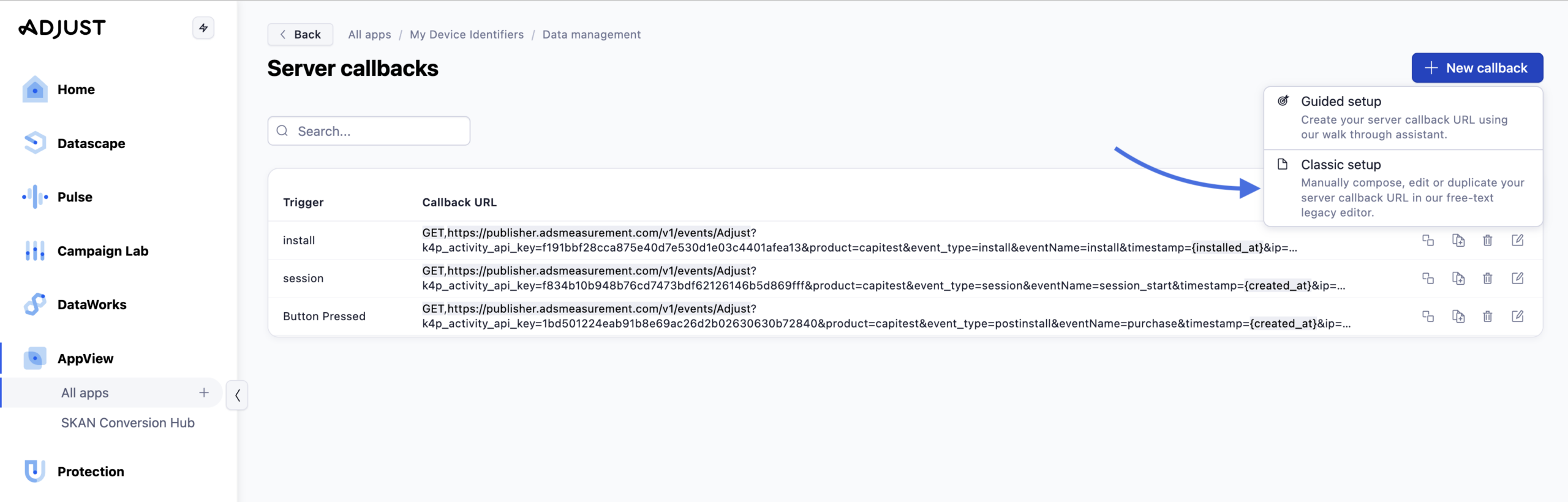
- Under Server callbacks, select + New callback > Classic Setup.
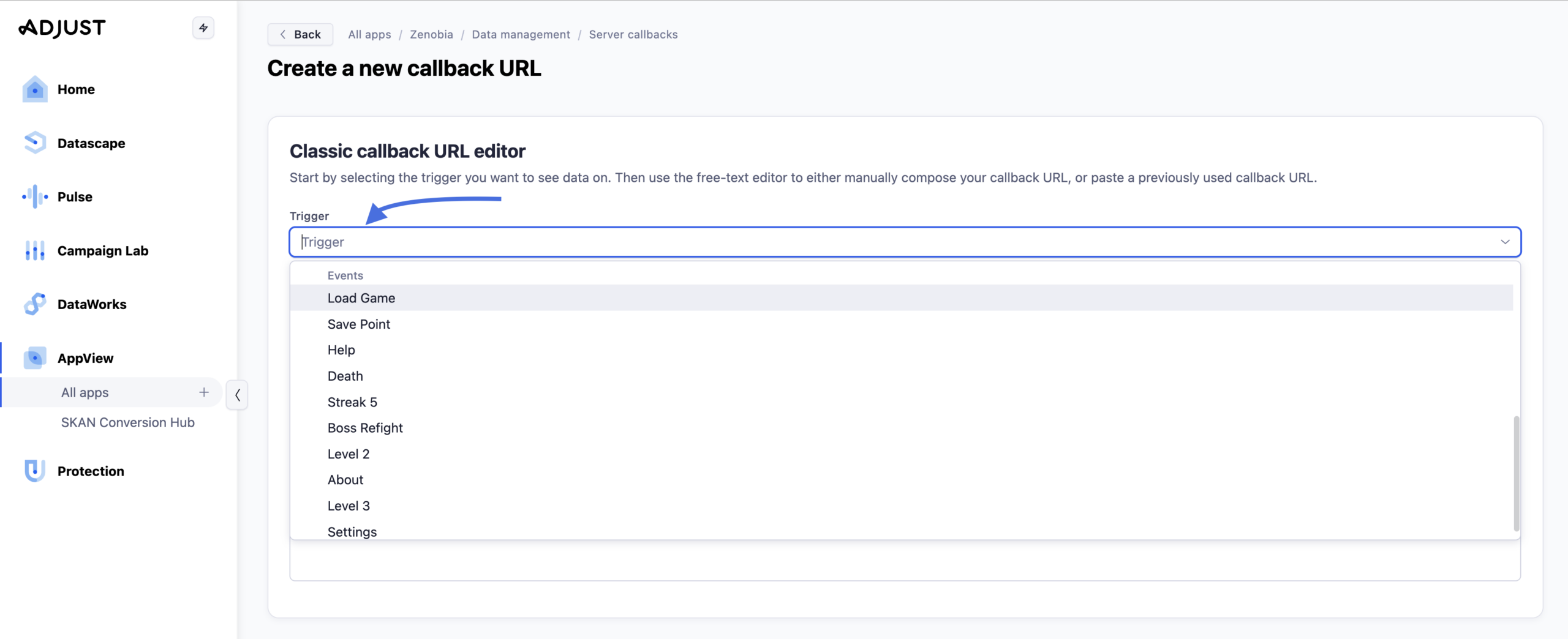
- Select Trigger.
- Insert your Callback URL created above.
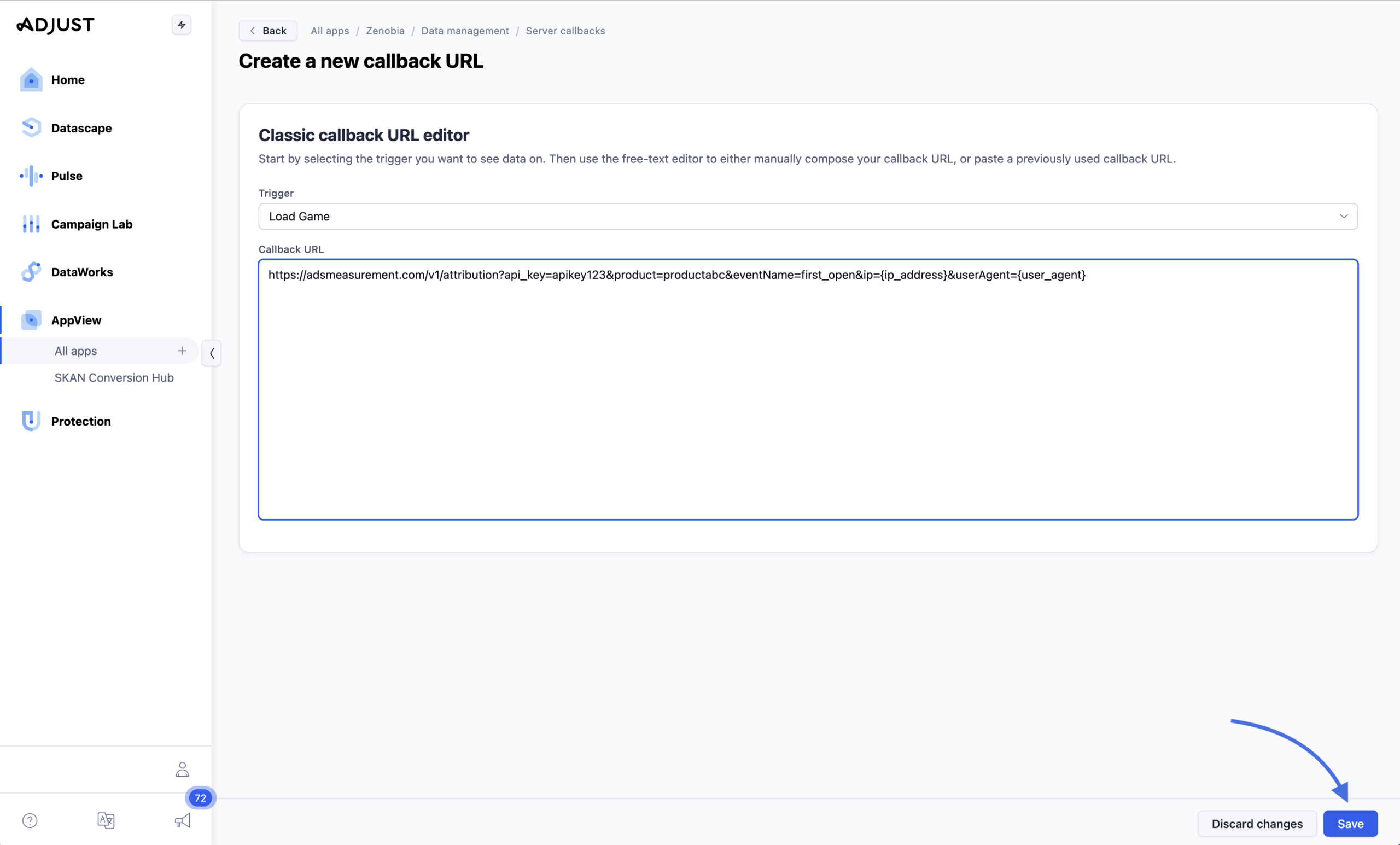
- Click Save.
Additional Resources
Email atlassupport@kochava.com for support, or reference Adjust’s Server Callbacks documentation for more information on Adjust’s Server Callbacks.