
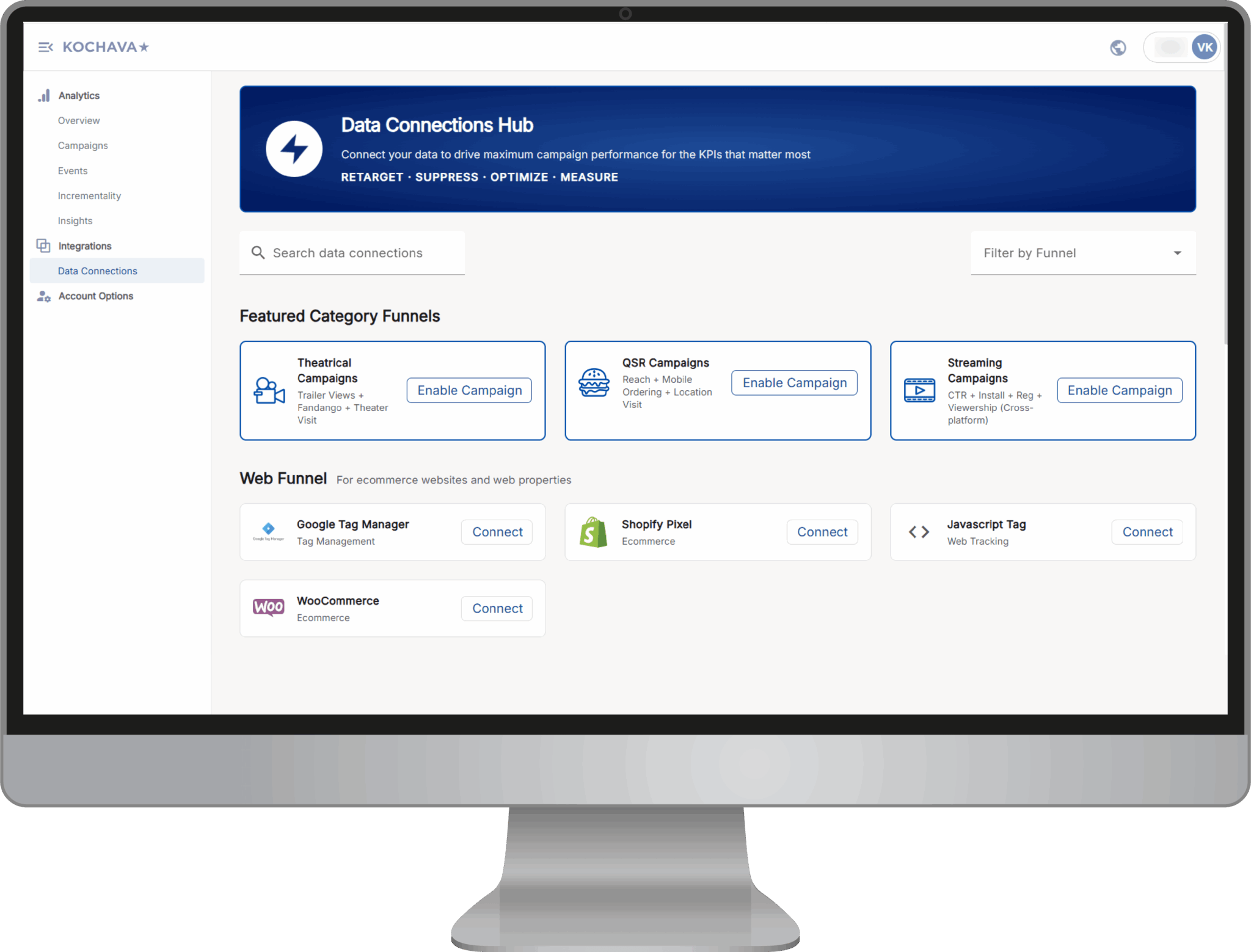
The Data Connections Hub is where you configure connections that bring advertiser conversion data — such as installs, purchases, web conversions, and more — into Atlas Performance for measurement, retargeting, suppression, and optimization.
The Hub supports outcome types across every stage of the funnel, from upper-funnel awareness signals (impressions, video views, brand lift) to lower-funnel conversion events (purchases, signups, in-store visits). It’s organized into channel-based sections — Web Funnel, App Funnel, IRL Funnel, Upper Funnel, and Cross Platform Funnel — along with a set of pre-packaged, industry-specific Featured Category Funnels (such as Theatrical or QSR Campaigns) for verticals with established data partnerships already built in.
This article walks through what the Hub offers and how to configure a connection once you’re ready to get started.
How to Configure a Data Connection in the Hub
Once you know which advertiser outcome or data partner you need, setting up a connection in the Data Connections Hub only takes a few steps. The exact fields you’ll fill in vary slightly by connection type, but the overall flow is consistent across the Hub.
Step 1: Open the Data Connections Hub
- In the left navigation menu, go to Integrations > Data Connections.
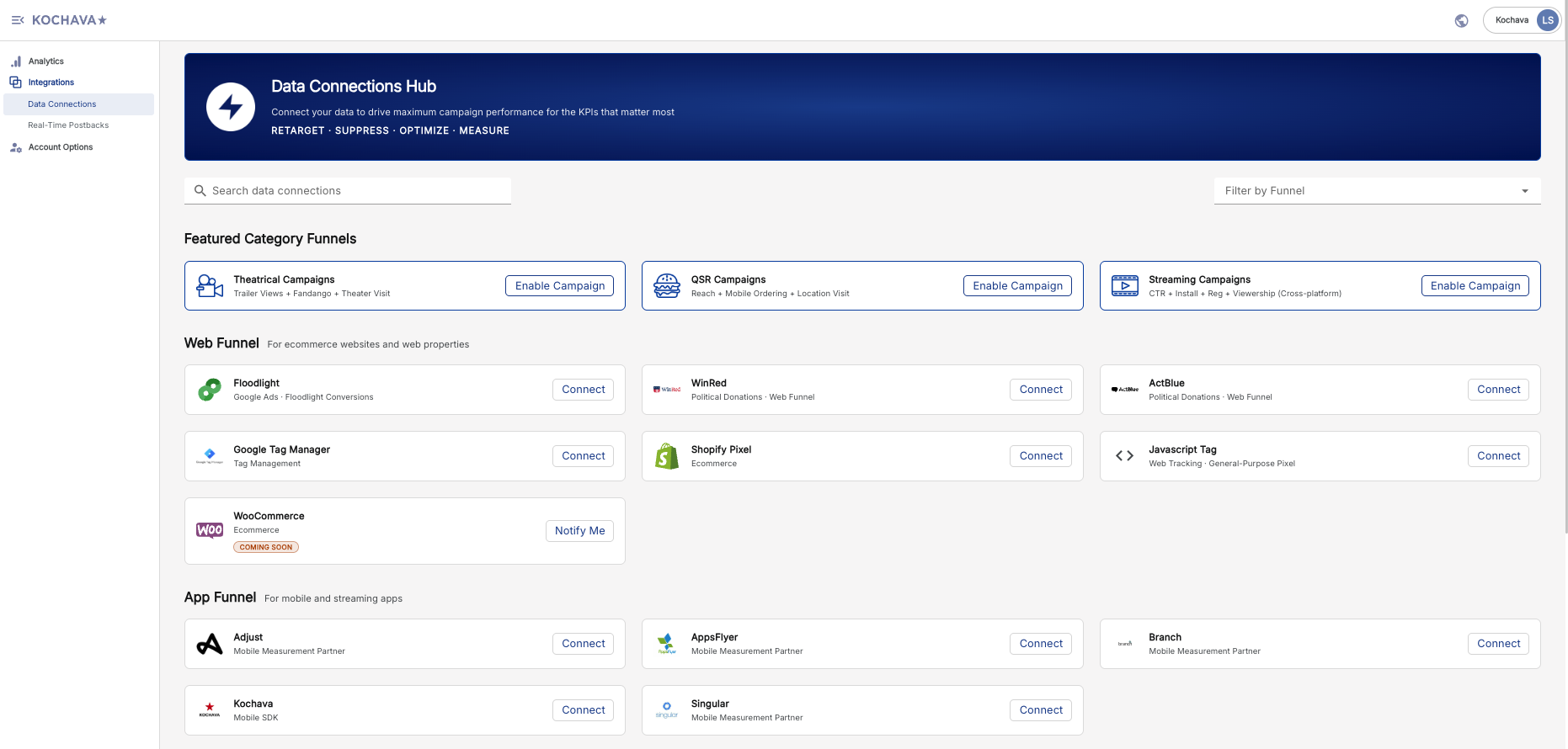
- The Hub’s main page loads, organizing available connections into sections: Featured Category Funnels, Web Funnel, App Funnel, IRL Funnel, Upper Funnel, and Cross Platform Funnel.
- Each connection is shown as a card with a name, category, and either a Connect button (self-service integrations) or an Enable Campaign button (pre-packaged category funnels).
- Connections that aren’t yet available display a Coming Soon badge with a Notify Me option instead.
Step 2: Find the Right Connection
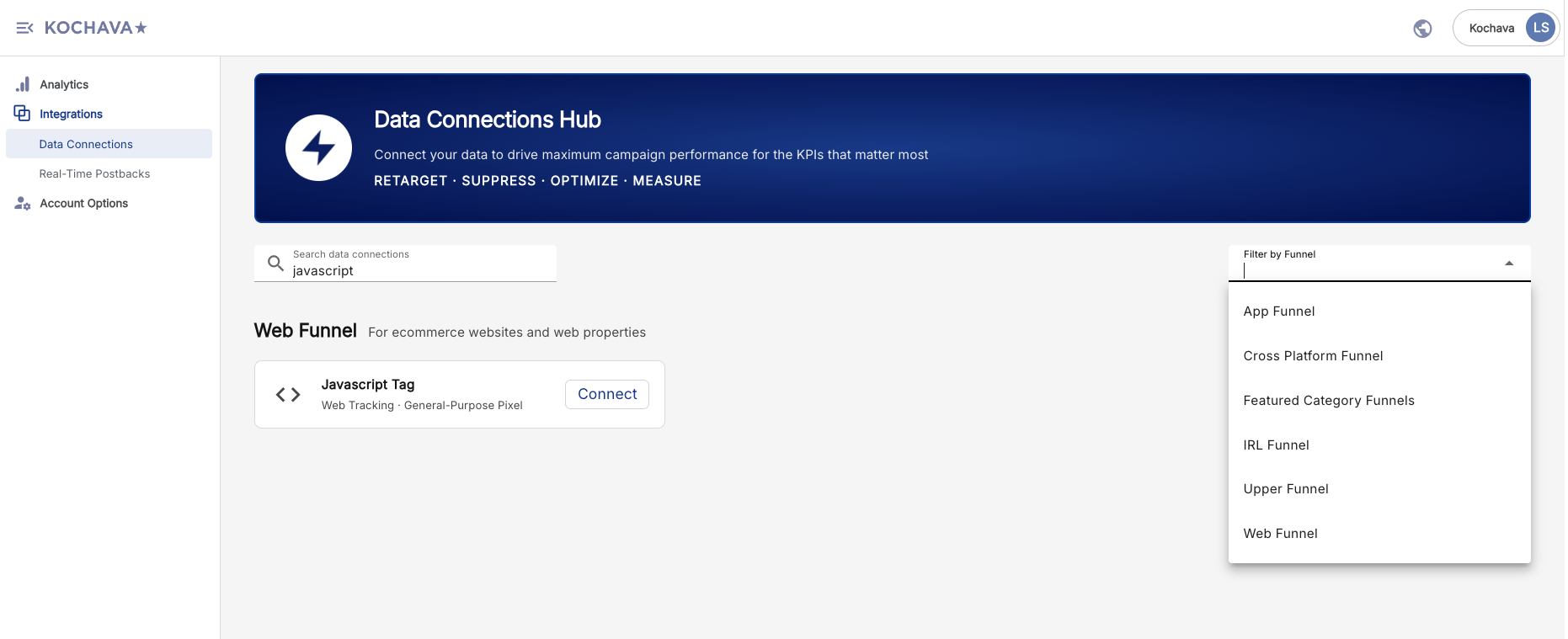
- Use the Search data connections field to look up a partner or connection by name.
- Alternatively, use the Filter by Funnel dropdown to narrow the list to a specific funnel stage.
- Browse by section if you’re looking for a pre-packaged, industry-specific bundle (like Theatrical or QSR Campaigns) versus an individual tool (like a Shopify pixel or an MMP integration).
Step 3: Start the Connection
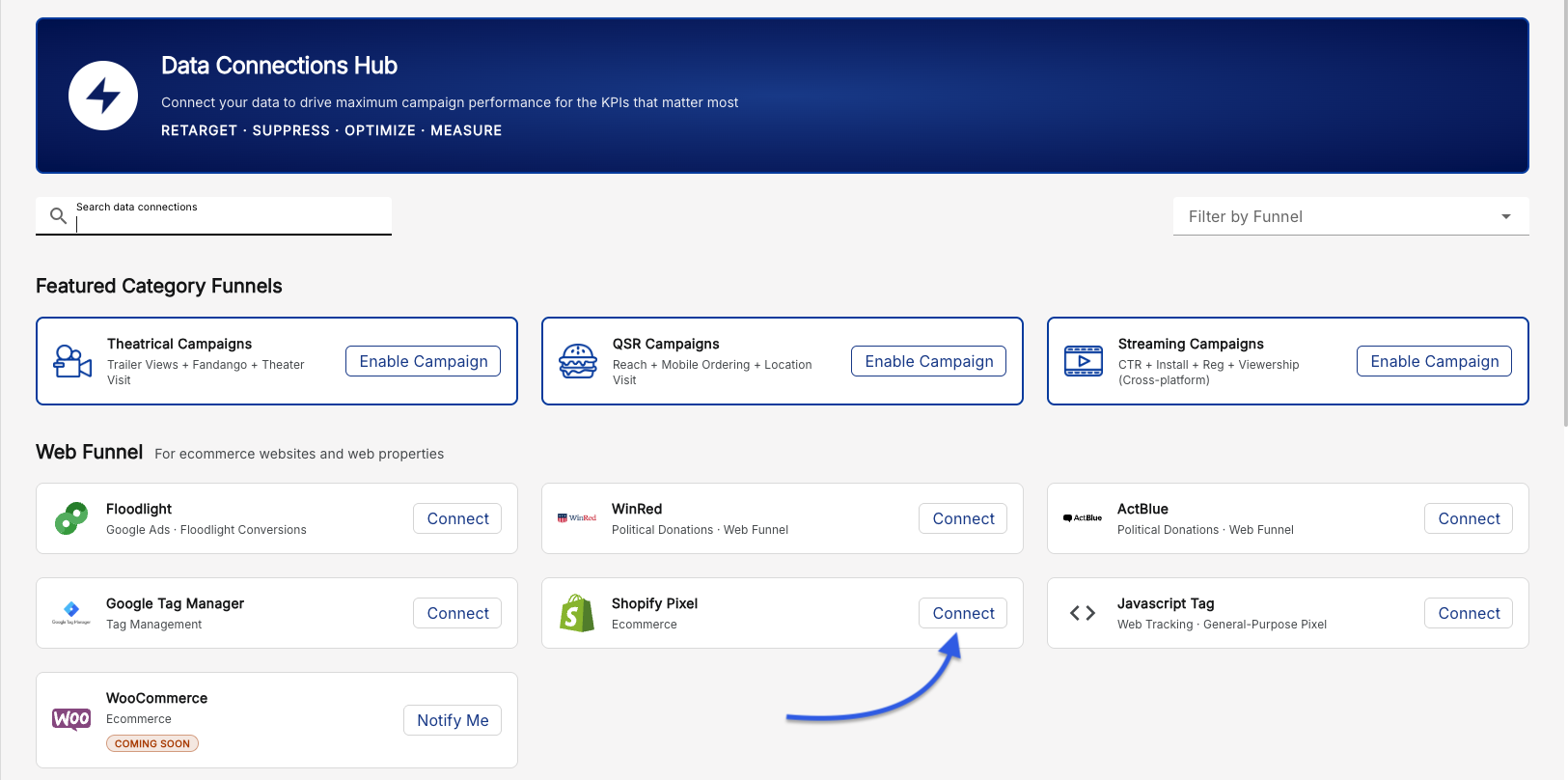
- Locate the card for the integration you want to configure.
- Click Connect (or Enable Campaign for pre-packaged category funnels).
- A guided setup flow specific to that connection will open. You can navigate back to the main Hub at any point if you need to start over or choose a different integration.
Step 4: Follow the Guided Setup Steps
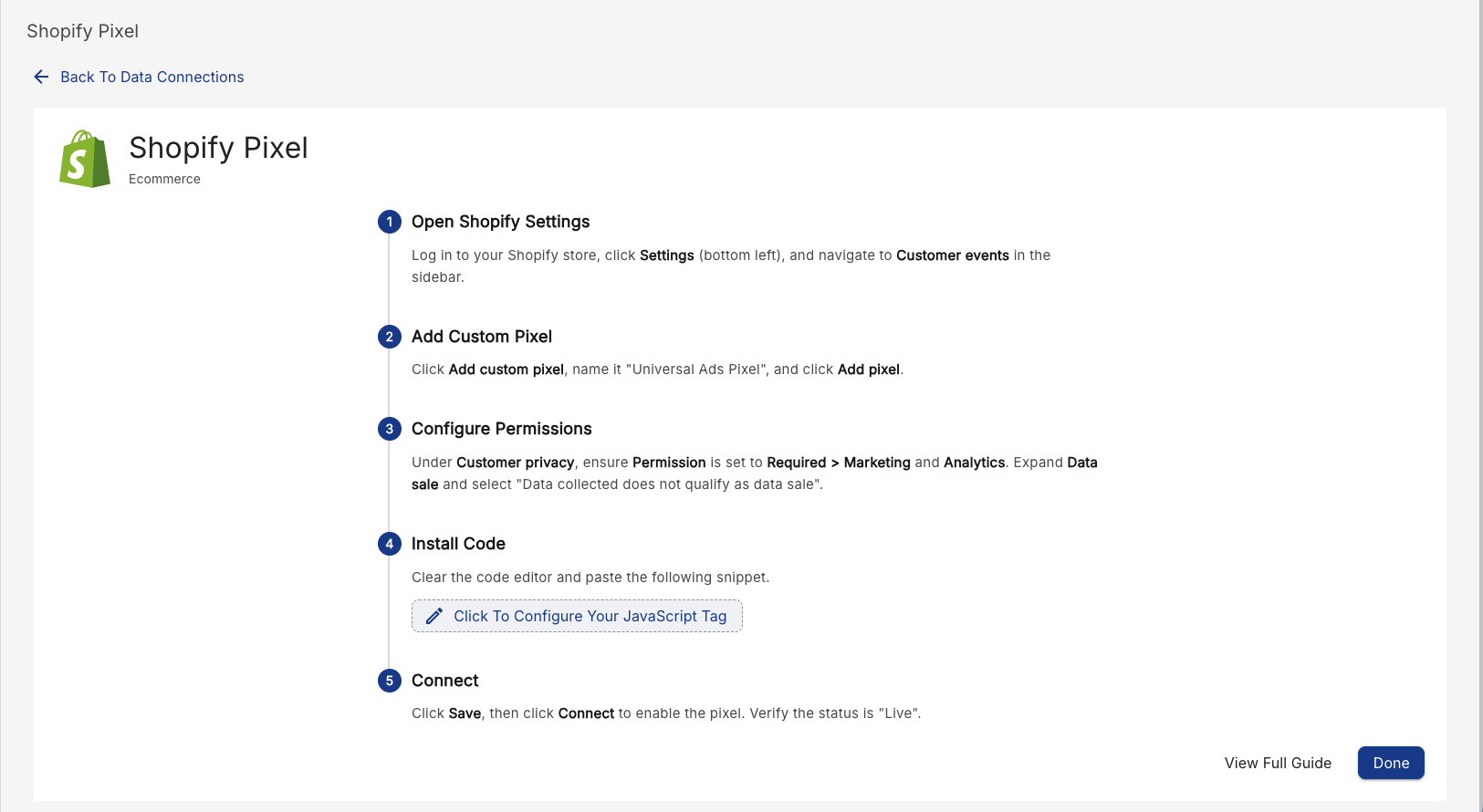
Pixel or Tag Connections (e.g. Shopify Pixel)
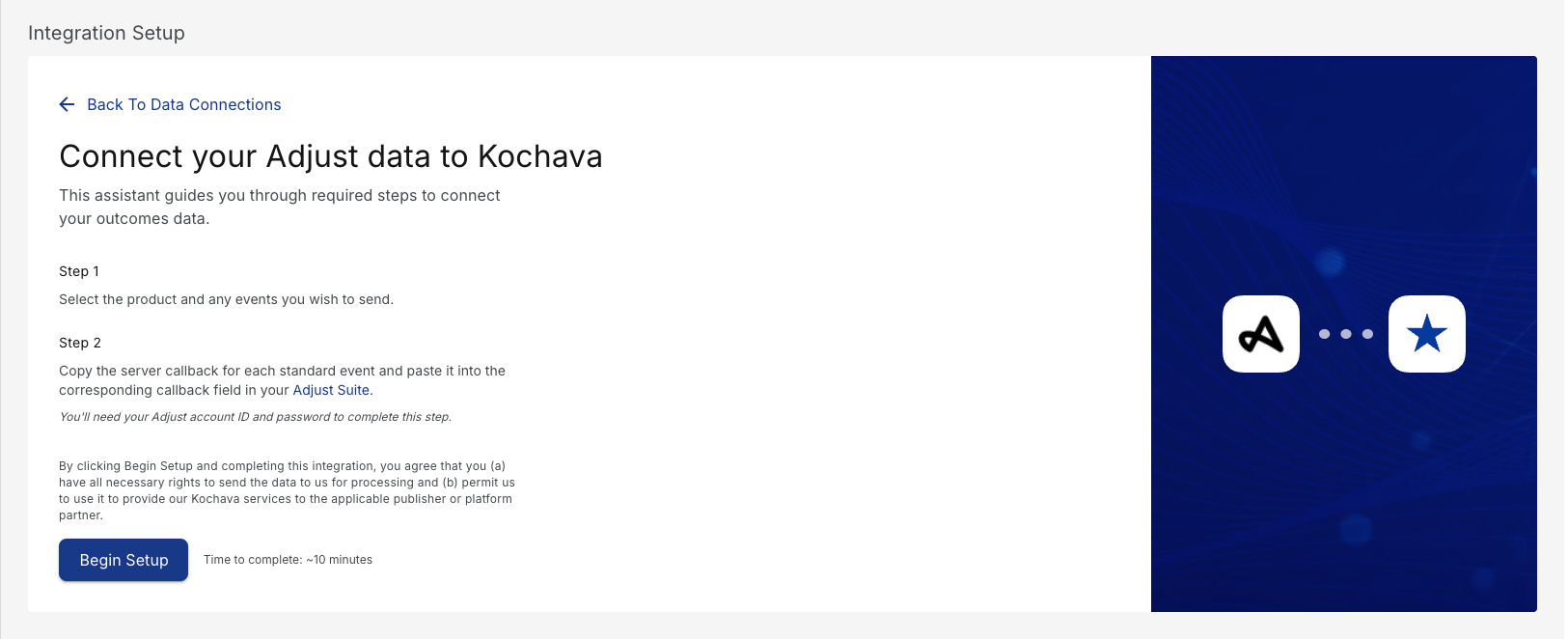
MMP and Postback Connections (e.g. Adjust)
- Click Begin Setup.
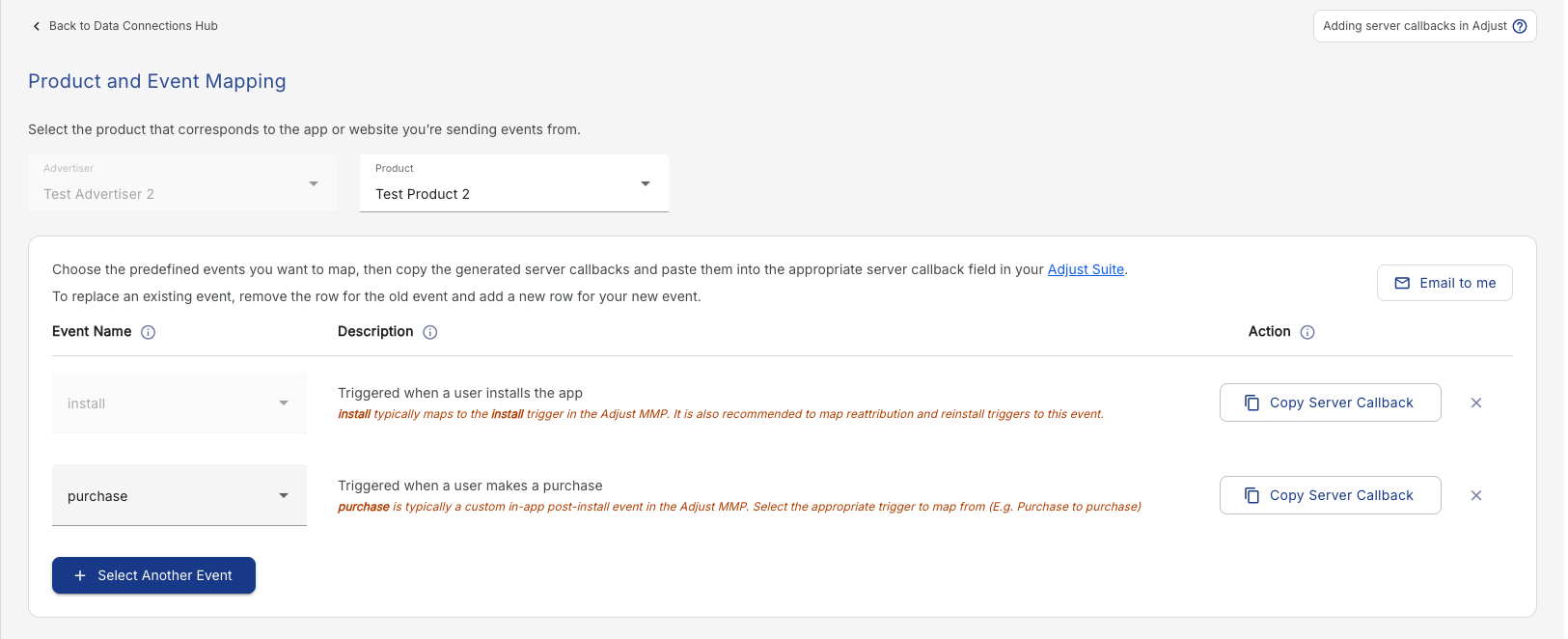
- Select the relevant Advertiser from the dropdown.
- Select the relevant Product (the app or website sending events) from the dropdown.
- In the Events table, select one or more predefined events to map. Each row shows the event name, a description, and a Copy Server Callback button.
- Click Copy Server Callback to copy the generated callback URL for an event.
- Paste the callback URL into the matching field inside the partner platform’s dashboard (e.g., Adjust Suite).
- Click Select Another Event to repeat the mapping process for additional events, if needed.
- Optional: Use the Email to me option to send yourself the callback URLs instead of copying them on the spot.
Featured Category Funnels (e.g., Theatrical, QSR, Streaming Campaigns)

- Click Enable Campaign to open the integration request form.
- Submit the requested campaign details (e.g., brand, flight dates, estimated impressions).
- The Kochava/Atlas team reviews the request and completes the backend configuration.
- The team follows up with any associated cost estimates for your approval.
- Once approved, the campaign is activated and goes live.
Step 5: Verify the Connection Status
- Return to the Data Connections Hub main page.
- Locate the connection you just configured.
- For self-service connections, confirm the status displays as Live or Connected.
- For connections handled by the Atlas/Kochava team, wait for confirmation that setup is complete on their end before expecting data to flow.
Step 6: Know Where to Go for Help
- If a connection isn’t behaving as expected, avoid re-submitting or re-triggering test sends repeatedly (some partner integrations, like postback-based connections, can fail on manual test triggers even when correctly configured).
- Note the connection name and any error messaging you’ve seen.
- Reach out to your Kochava support contact with those details so the issue can be investigated on the backend.
Frequently Asked Questions
1. What types of outcomes does Data Connections Hub support?
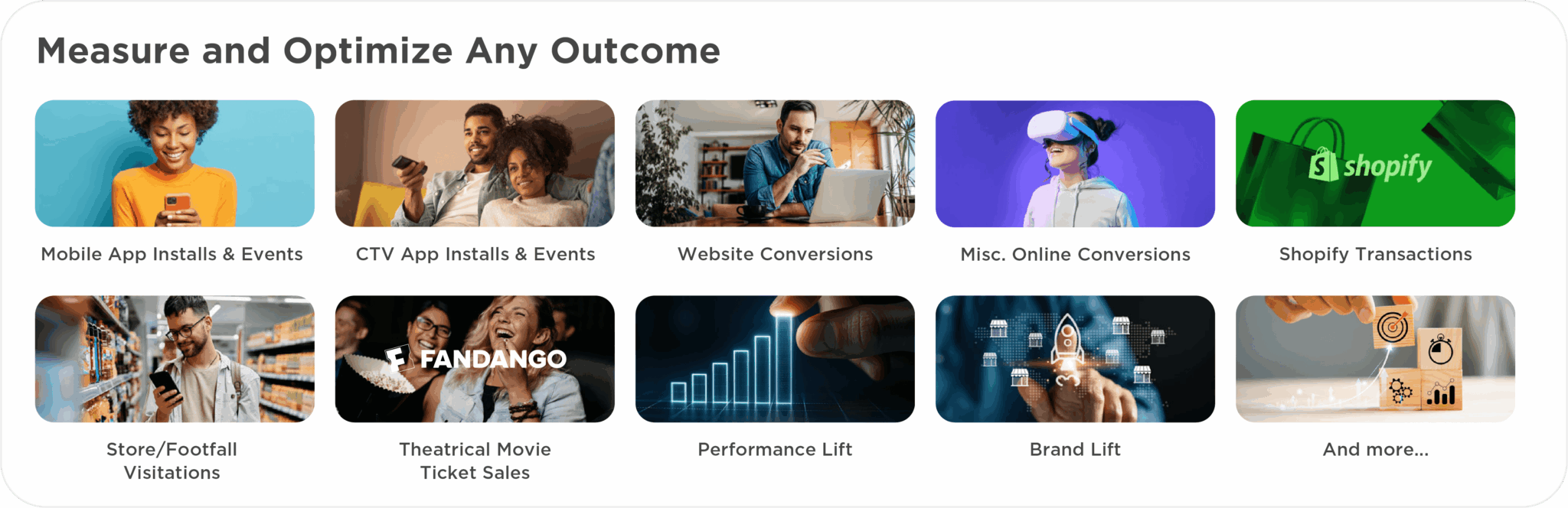
Data Connections Hub is outcome-agnostic by design, meaning that it supports a broad range of advertiser KPIs across every stage of the funnel, from brand awareness to purchase conversion.
| Upper Funnel: Awareness | Mid-Funnel: Engagement & Consideration | Lower Funnel: Performance & Conversion |
|---|---|---|
| Ad Exposure Impressions, reach & frequency events | App Activity Installs, launches, CTV app opens & registrations | Transactions Purchases, in-app events, subscriptions |
| Video Views, completion rates, trailer & pre-roll views | Web Site visits, page views, content engagement | Signups Form completions, registrations |
| Brand Brand-lift signals | Audience Qualification actions, store locator interactions | Physical Theater visits, footfall visitation, receipt scans, SKU-level purchase data |
2. What channels and inventory types does Data Connections Hub work with?
Data Connections Hub is channel-agnostic and built to support the full breadth of modern media — wherever your inventory lives and your advertisers run campaigns. In the Hub, this shows up as distinct sections for Web, App, IRL, Upper Funnel, and Cross Platform connections, so you can find the right integration regardless of where the data originates.

3. How long does it take to onboard a new advertiser?
Significantly faster than traditional approaches. For common integrations such as our Shopify pixel or web pixel, setup can be completed in as little as 15 minutes. Advertisers connecting via their existing mobile measurement partner (MMP) or customer data platform (CDP) can complete steps in 20 minutes or less. Featured category funnels that require Kochava/Atlas team setup (like Theatrical or QSR Campaigns) may take slightly longer, since they route through an integration request and internal review before going live. Certain outcome types require zero advertiser effort.
4. Does our engineering team need to build or maintain custom integrations?
No — that’s precisely the point. Data Connections Hub transforms integration infrastructure from an ongoing engineering burden into a solved problem. Rather than having your team build and maintain custom connections for each advertiser or vendor, DCH provides a standardized, universal layer that handles data collection across web, mobile, CTV, in-store, and more. Configuration is handled through the guided in-app steps described above, not custom development.
5. Once advertiser data is connected, what can it be used for?
Every data point collected through Data Connections Hub can be leveraged for:
- Measurement: Attribute outcomes to your supply and prove campaign effectiveness.
- Retargeting: Reach high-intent audiences across devices and channels.
- Suppression: Remove converted or underperforming users to protect advertiser spend.
- Optimization: Feed AI-powered audience and campaign optimization tools with real conversion signals.
6. What data partnerships does Data Connections Hub support?
Data Connections Hub is backed by a growing ecosystem of best-in-class data partnerships that bring verified, real-world signals directly into your measurement and optimization workflows. Current key partnerships include:
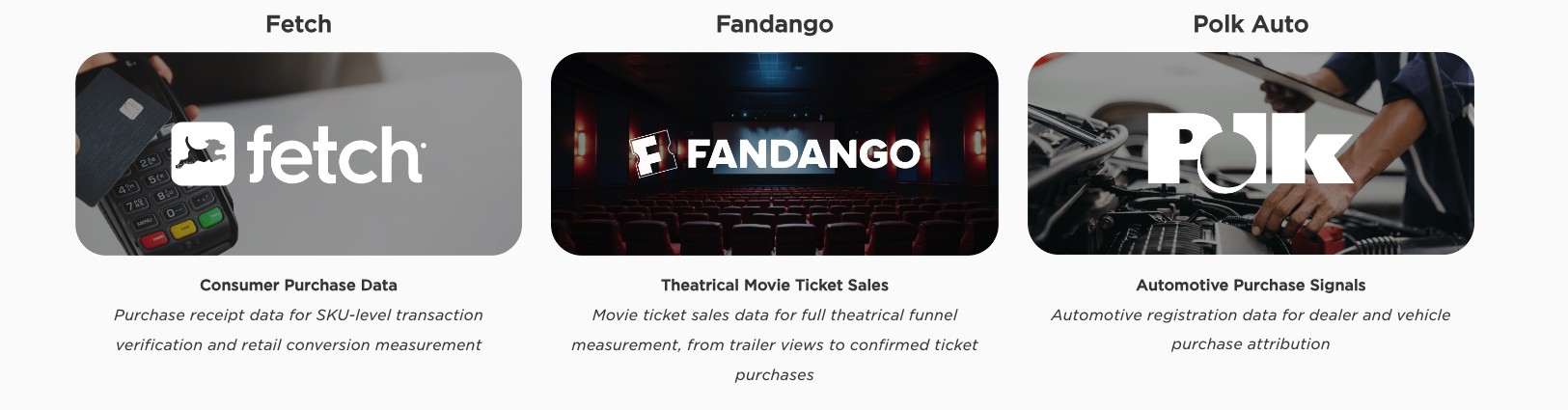
Our data partner ecosystem is constantly growing. Contact your Kochava account representative for the latest list of available partnerships and to explore which integrations best fit your advertiser mix.
Need Additional Help?
If you run into an issue while configuring a connection, or you don’t see the integration you’re looking for in the Hub, reach out to your Kochava account representative or contact support so we can help you get it set up correctly.
Contact Support: atlasperformance@kochava.com